

Classic Coin Co.


“The only true wisdom is in knowing you know nothing.”
-SOCRATES

-True Collectors, Lovers of fine gifts, and to the people who pay attention to DETAIL. -X24
Dive into the thrilling world of crypto! While the volatility or extremes of up and down trends happen massively and quickly. Savvy collectors can and will profit. Just remember, over 90% of meme projects may collapse due to scams! Read the links below. All I can suggest is to start reading about the risks in CRYPTO. It is a very VAST world of information and new technologies. Most blockchains and their features and ecosystems are so new and development is the stage.
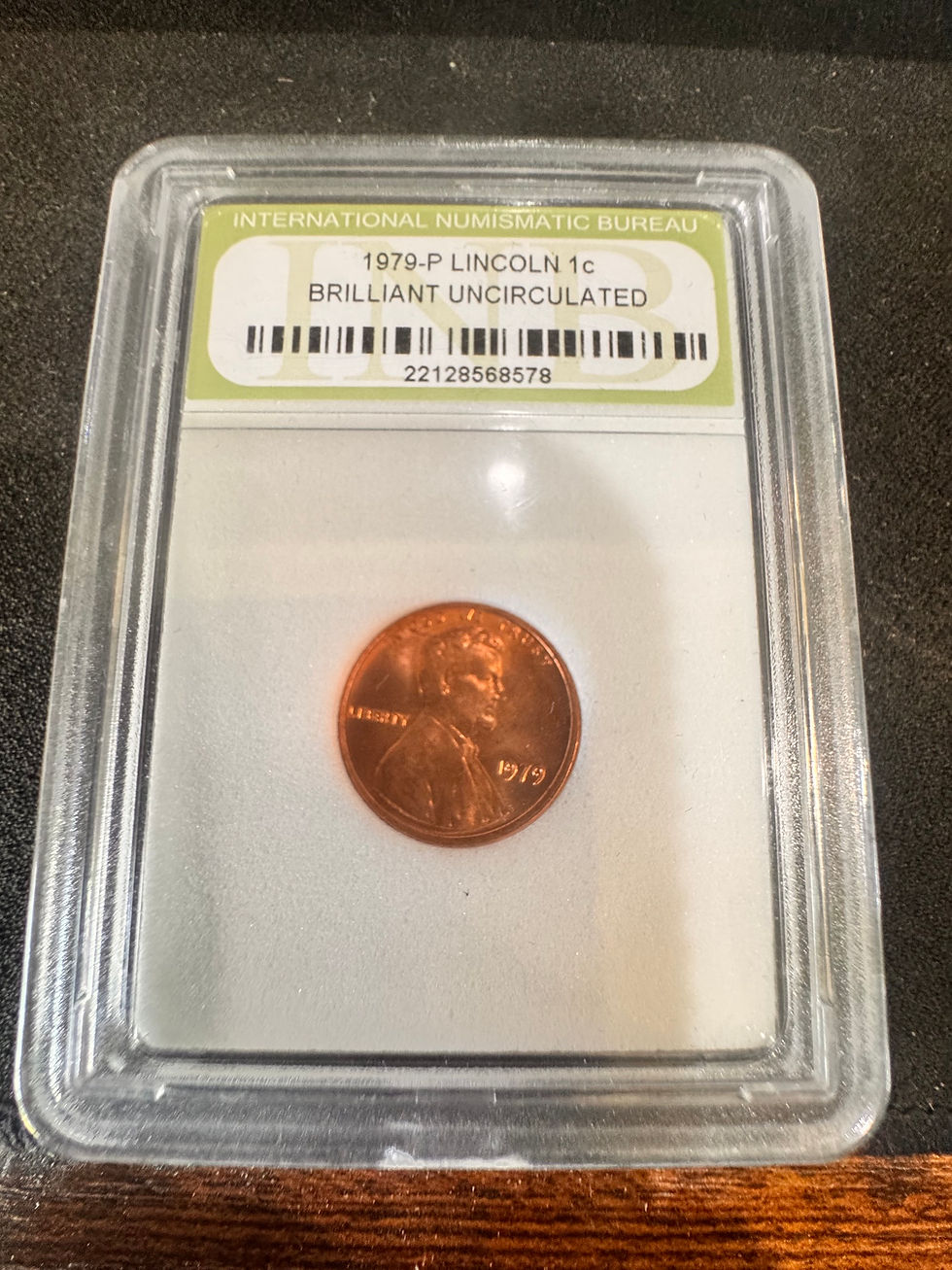
Precious metals and beautiful art that have been minted from Ancient Coins to Bullion: (A reliable investment: Gold and Silver maintained and multiplied in long-term history with a steady movement. the value over centuries, and collecting old coinage or precious metal is both smart and beautiful.) Every piece has one story or a million that is lost in that deep luster of silver or gold. You can only wander and open your brain to the possible magic of being part of so many lives in that time of history be it a dated coin/bullion... Bullion and simple raw weight (Melt Value) are another way to store value and increase over long term exposure.
Premium die-cast collectibles (unopened chases & more): Experience the hunt! Sealed variants from brands and rare finds. We must not leave out Sports and Fantasy Card games like Pokémon, One-piece and MAGIC: the Gathering.
-Whatever the case or art piece may be, these eyes (No AI) will catch and curate to deliver the most beautifully detailed collectibles and even possibly a painting here or there. Our range of our curated collection an be old furniture to a coin to a diamond earring.
"What catches your eye?" -X24
Email for questions:

Contracts or Orders of Work:
2
Companies
UPCOMING REPRESENTATION
3
BRANDING, HD GRAPHICS, ETC.
Welcome to The Classic Coin Company's Whatnot Auctions! We showcase remarkable items that highlight a rich history and value. Stay tuned updates on our shows and exceptional pieces!
Dates will be posted at a later date.
CRYPTOCURRENCYGrow Your Vision
Welcome to the
QUICK TOOL SECTION
for Crypto/Blockchain DYOR (Do your own research) and Trading.


more
S e r v I c e s
Working With the Best...





Artistic Hub
Expand Knowledge
When a service requests a vector format...
Here’s a simple, beginner-friendly guide to turn any image (like a photo, logo, or drawing) into a vector file suitable for screen printing.
Vector files (SVG, AI, or EPS) are scalable without getting blurry, and they make color separation easier for screen printers.
Important Notes Before Starting
-
Simple designs work best (logos, bold text, line art). Complex photos or detailed images often need heavy manual cleanup or won’t vectorize cleanly for printing.
-
Screen printing prefers solid colors and clean edges — avoid gradients, shadows, or too many tiny details if possible.
-
You’ll need vector software or an online tool. Free options exist.
Option 1: Free & Easiest Method (Online AI Vectorizer Tools)
This is the quickest for beginners—no software install required.
-
Prepare your image
-
Start with a high-resolution image (at least 300 DPI if possible).
-
Remove the background if needed (use remove.bg or similar free tool).
-
Simplify colors: Convert to black & white or limit to 3–5 solid colors using a photo editor like Photoshop, GIMP (free), or even phone apps.
-
-
Upload to a free vectorizer
-
Go to a tool like: Vector Magic (vectormagic.com — limited free trials), Vectorizer.ai, Kittl Vectorizer, or Vectorization.org (good for simple black & white).
-
Upload your image.
-
-
Choose settings
-
Select “Full color” or “Black & white” depending on your design.
-
Adjust “detail” or “smoothness” sliders to reduce jagged edges.
-
Preview the result.
-
-
Download the vector
-
Save as SVG (universal) or EPS (common for print shops).
-
Test by opening in a browser or free viewer — zoom in to check sharpness.
-
-
Clean up if needed
-
Open the SVG in free software like Inkscape (download at inkscape.org).
-
Delete unwanted parts, combine shapes, or fix colors.
-
Option 2: Using Free Software (Inkscape — Recommended for More Control)
-
Download and install Inkscape (completely free).
-
Open your image: File → Import.
-
Auto-trace it
-
Select the image.
-
Go to Path → Trace Bitmap.
-
Choose “Brightness cutoff” for simple black/white or “Colors” for multi-color.
-
Adjust the threshold and click Update to preview.
-
Click OK.
-
-
Clean and edit
-
Delete the original raster image.
-
Select the new vector paths.
-
Use “Ungroup” (Ctrl+Shift+G) and edit shapes with the Node tool (F2).
-
Simplify paths: Path → Simplify (reduces extra points for cleaner printing).
-
-
Color separation for screen printing
-
Make each color a separate layer or object.
-
Use solid spot colors if possible.
-
-
Save as: File → Save As → Choose Plain SVG or EPS.
Option 3: Using Adobe Illustrator (Paid, but Pro Standard)
-
Open your image in Illustrator.
-
Select it → Go to Object → Image Trace → Make.
-
In the Image Trace panel:
-
Choose a preset like “Black and White Logo” or “High Fidelity Photo”.
-
Adjust Threshold, Paths, Corners, and Noise for better results.
-
Click “Expand” to turn it into editable vectors.
-
-
Ungroup, delete white areas if needed, and clean up with the Direct Selection tool.
-
Save as AI, EPS, or SVG.
Quick Prep Tips for Better Results
-
High contrast images trace much better than low-contrast or blurry ones.
-
For photos: First turn them into a limited-color posterized version in a photo editor.
-
Test print readiness: Send a sample to your screen printer early — they may need separate color layers or specific file setup.
-
Common file types for printers: EPS or AI (editable), SVG (lightweight).
If the auto-trace looks messy, the most reliable (but slower) method is manual tracing with the Pen tool in Inkscape or Illustrator — trace the outlines yourself for perfect control.
Start with a simple logo or graphic to practice. Once you have the vector, you can resize it infinitely for different shirt sizes without quality loss.
If you run into issues with a specific image, describe it (or share details) and I can give more tailored advice!

ALL EMBROIDERY AND SCREEN PRINTING.
Art by X24
